
Every material movement.
Connected to the right job.
Custom materials management system for a New York-area tile distributor and installer.
The problem
Warehouse pickups weren’t tied to specific jobs or approved material quantities. The office had difficulty understanding job usage, excess pickups, and stock available to commit.
What Cayenne built
The office application
Staff set up jobs, assign subcontractors, and approve material quantities. Changes require a logged note. Staff record stock arrivals, issue QR ID cards, and report on transactions, job usage, inventory value, and received stock, with date filters and CSV export.
The warehouse application
A subcontractor’s QR card identifies assigned jobs. Staff select a job and issue approved materials within the remaining allowance. Returns and corrections are recorded in the application.
Controls built into the workflow
- New approvals are capped at stock not committed elsewhere.
- Expired jobs cannot receive material issues.
- Approval edits require a note and record who changed what and when.
- Returns and corrections are recorded as separate transactions.
- Replacing a lost QR card deactivates the old card.
Reporting with a clear purpose
Five reports cover transactions, item utilization, inventory, stock entries, and approval edits. Date, job, subcontractor, and item filters apply where relevant, with CSV export on every report.
The result
Issues and returns are tied to a job and subcontractor. The office can see stock on hand, committed and uncommitted quantities, and the value issued per job. The application prevents issuance above the approved allowance.
Practical controls.
Built into everyday work.
Actual application screens with demonstration data, showing warehouse controls and office reporting.
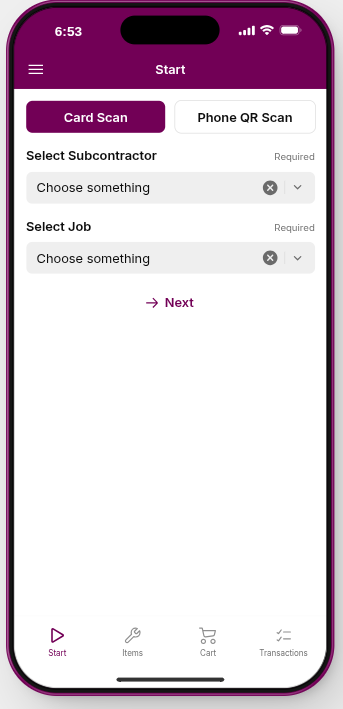
01 · Identify the subcontractor
Scan a QR card to begin the warehouse pickup workflow.
View larger screenshot ↗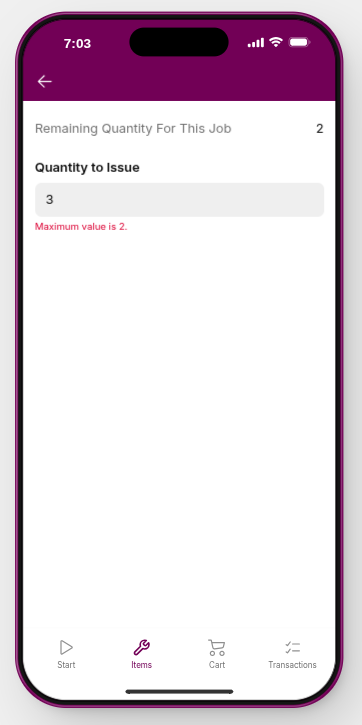
02 · Stay within the allowance
The app flags a quantity above the remaining approved amount.
View larger screenshot ↗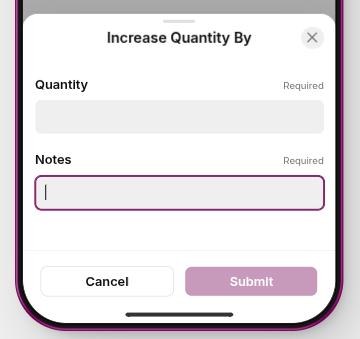
03 · Explain quantity changes
A required note gives the office context for a quantity adjustment.
View larger screenshot ↗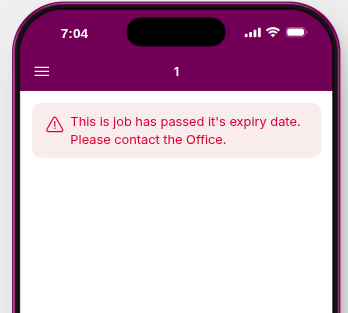
04 · Stop expired-job pickups
An expired-job warning directs warehouse staff back to the office.
View larger screenshot ↗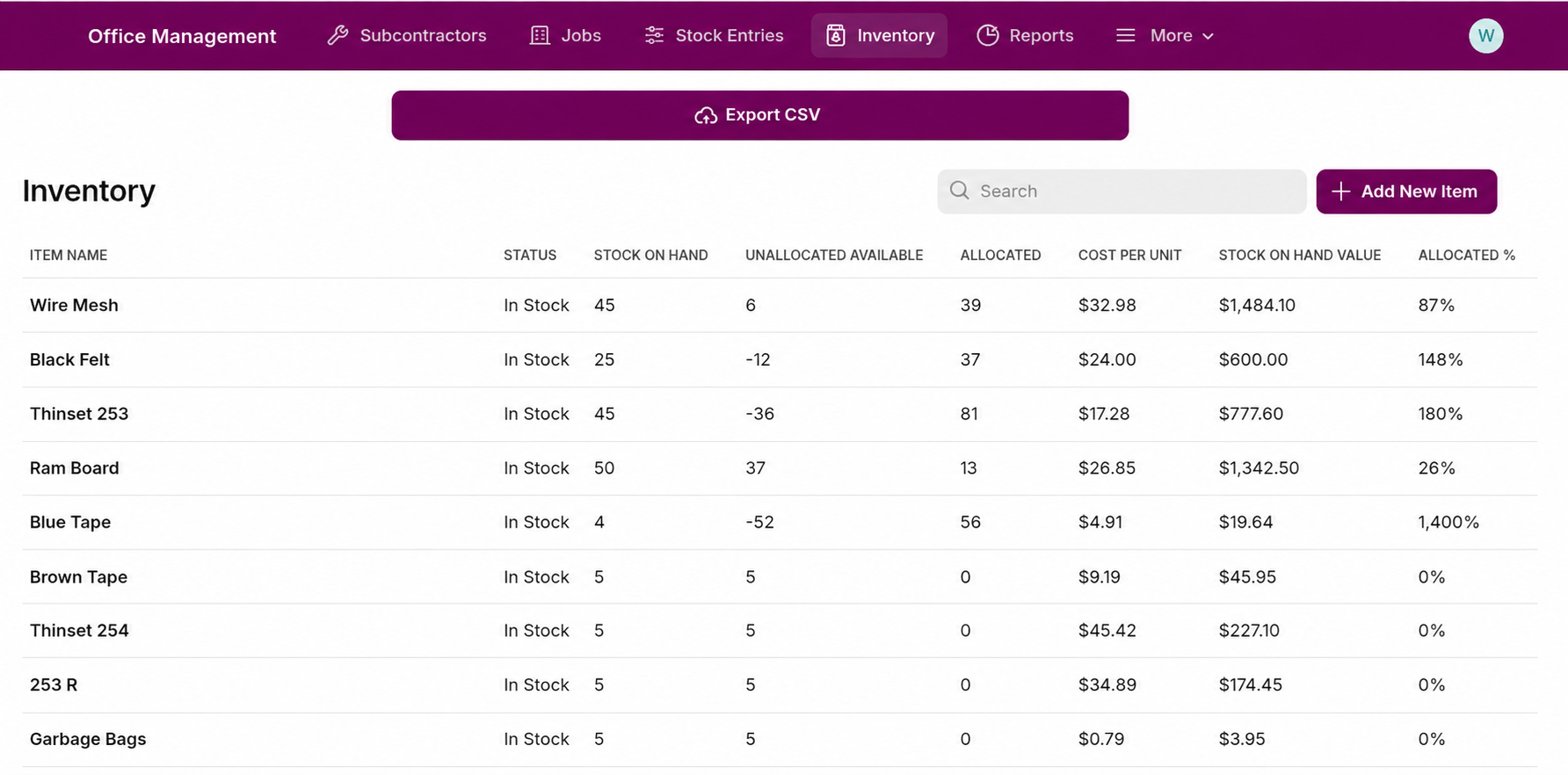
05 · See what is available
View stock on hand, allocated quantities, available stock, and inventory value.
View larger screenshot ↗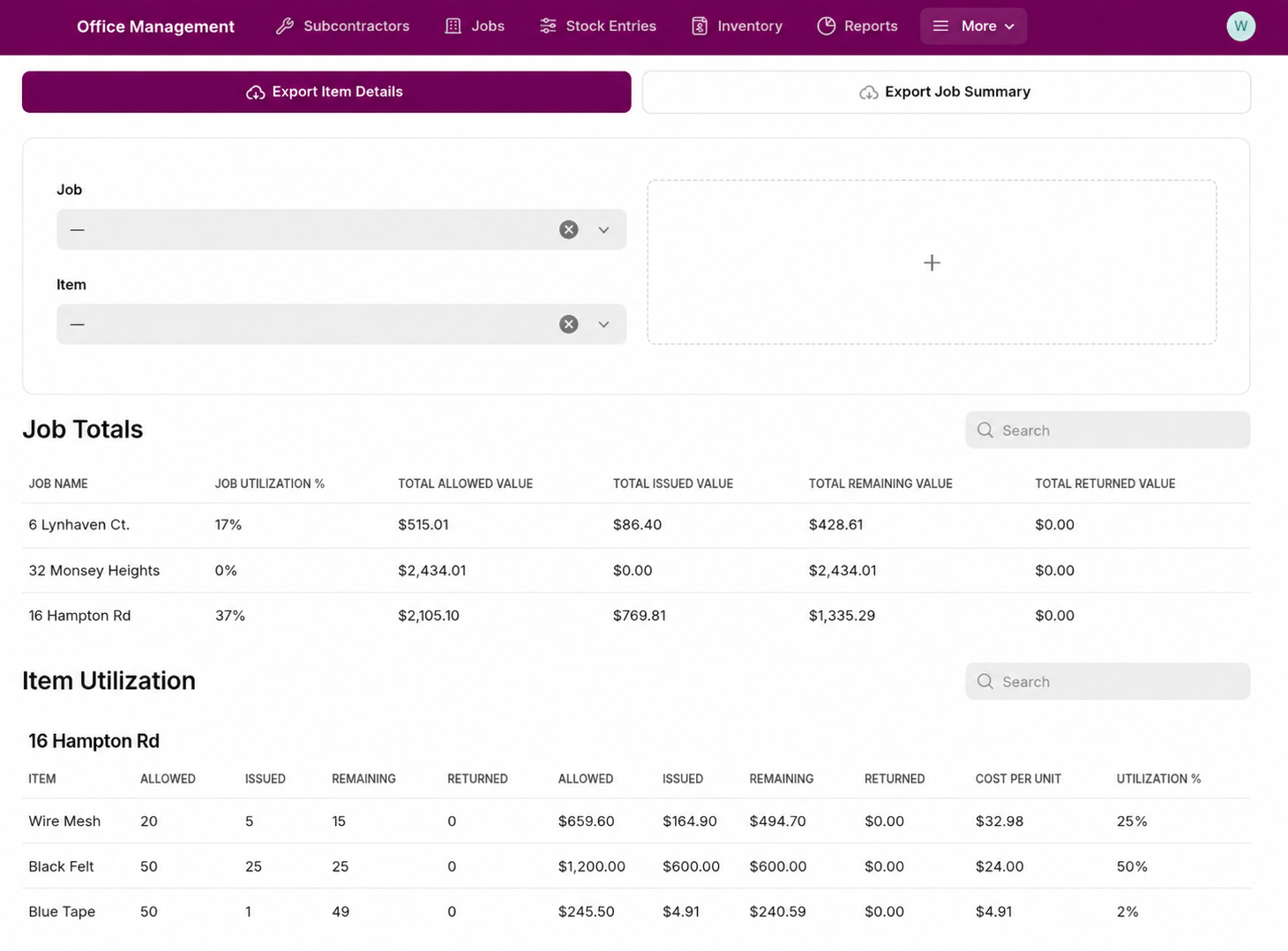
06 · Understand material usage
Review materials issued by job and compare allocations with actual usage.
View larger screenshot ↗Screenshots show demonstration data. Addresses and inventory costs are illustrative.